Keyboard Test Reports: Export Your Results as PDF, CSV or JSON
key-test Editorial Team7 min read
Finished testing a keyboard? Export a clear report with a keyboard map, coverage, rollover and a chatter check: a PDF for people, or CSV and JSON for spreadsheets and AI agents.
Until now, a keyboard test on key-test.com ended when you closed the tab. That is fine for a quick check, but not when you need to show someone the result: a seller who wants proof that a used keyboard works, a support team handling a warranty claim, or a forum thread where you are asking why one key keeps typing twice.
The keyboard tester now has a Report button. One click turns your test session into a clear summary that you can keep, print or send, in four formats.
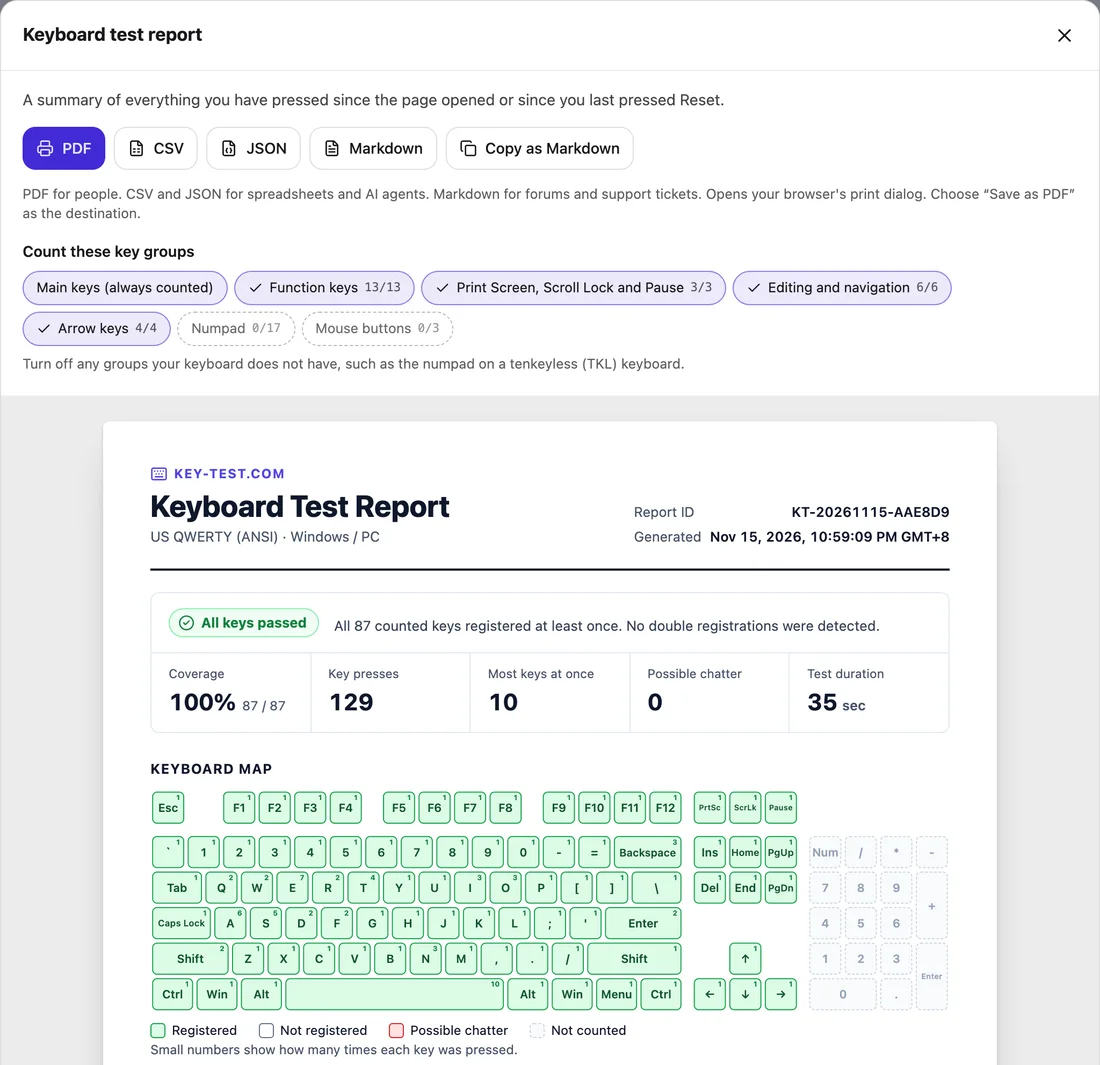
How to create a report
- Open the keyboard tester or any keyboard layout page and press every key on your keyboard. Hold a few keys together if you want to check rollover.
- Click Report in the toolbar, next to Reset. On a phone, it is the small document icon.
- Switch off any key groups your keyboard does not have, then choose a format.
The report covers everything you have pressed since the page opened or since you last pressed Reset. While the report window is open, key presses are not added to the test, so you can use Tab, Enter and Escape to move around it.
What the report shows
Each report starts with a status and a one-line summary:
- All keys passed: every counted key reached the browser at least once.
- Almost complete: only a few keys (five or fewer) have not registered, and the summary names them.
- Partially tested: shows how many keys have registered so far.
- Review needed: a key registered twice in quick succession and may be chattering.
- Not tested yet: nothing has been pressed since the page opened or since Reset.
Below the verdict you will find:
- Key figures: coverage, total key presses, the most keys held at once, possible chatter and how long the test took.
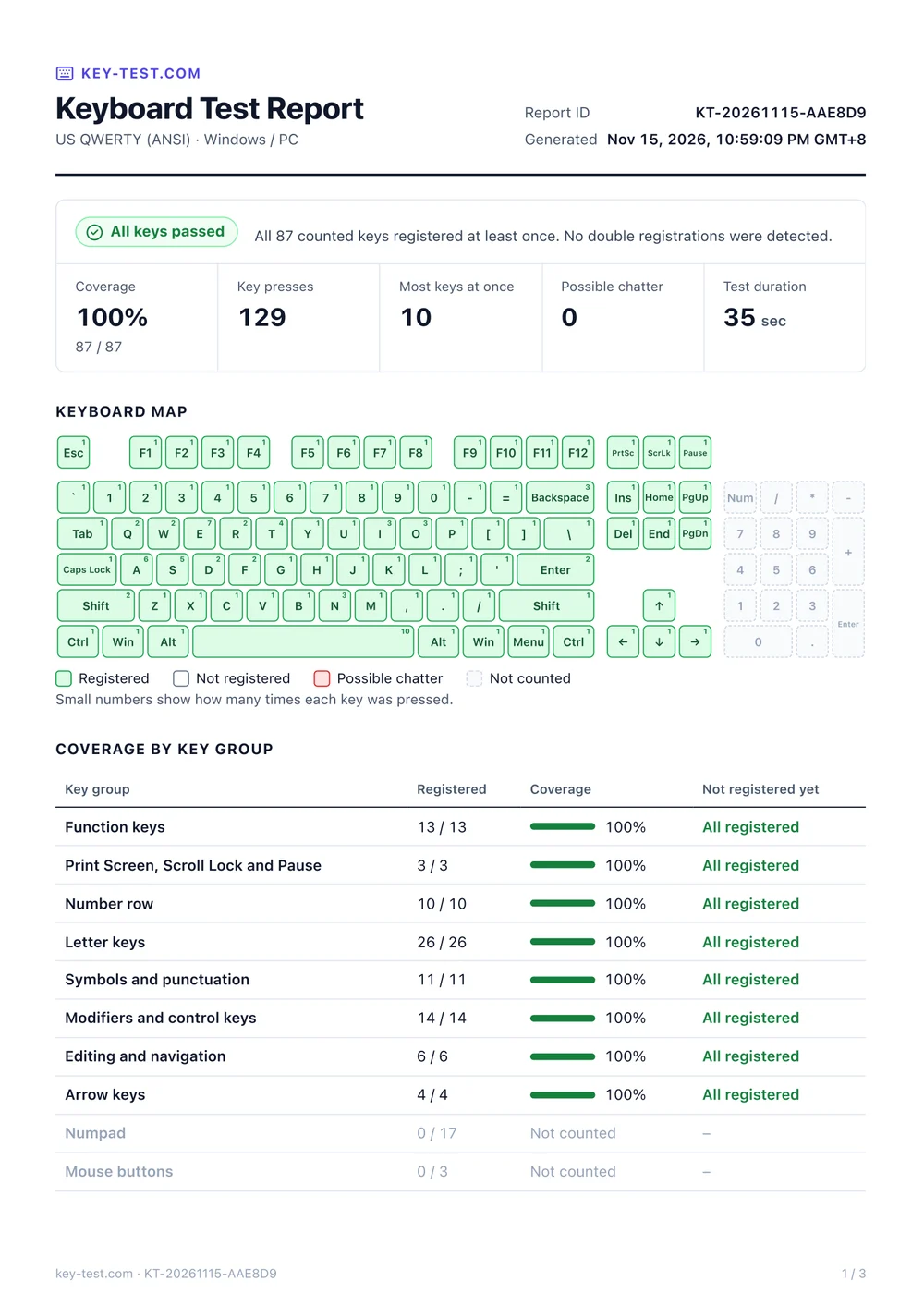
- Keyboard map: a full-size drawing of your layout. Registered keys are green with a small press count, keys that have not registered are outlined, possible chatter is red, and groups you are not counting are dashed. Keys that browsers cannot see, such as fn in the Mac view, have a dotted outline.
- Coverage by key group: function keys, the number row, letters, symbols, modifiers, editing keys, arrows and the numpad, each with the keys that have not registered yet.
- Rollover and chatter checks, explained below.
- Key activity: your most-pressed keys, auto-repeat events from holding a key down, and any extra keys the browser reported, such as media keys.
- Test setup: layout, Windows or Mac view, browser, operating system and timestamps, plus a report ID that matches across all formats from the same export.
Count only the keys your keyboard has
Most keyboards today are not full-size. A tenkeyless board has no numpad, and many 75% and 65% boards drop the Print Screen cluster or some editing keys. Without a way to say so, every report would end up incomplete.
Above the preview, the Count these key groups switches let you turn off the function row, the Print Screen, Scroll Lock and Pause cluster (F13–F19 in Mac view), editing and navigation keys, arrow keys, the numpad and mouse buttons. The main keys are always counted, and mouse buttons are off by default. Each switch shows how many of its keys have registered, and the report updates as you toggle. Your choice is remembered in this browser for next time.
Check for chatter and rollover
Chatter is when a worn or dirty switch sends one press as two. The report flags a key when it registers again within 50 milliseconds, faster than a person can normally press the same key twice. Holding a key down to auto-repeat does not count. A flagged key is a reason to retest it slowly, not proof of a fault, but it is often the first sign of a switch that needs cleaning or replacing.
Rollover is how many keys a keyboard can register at once. The report records the largest number of keys the browser saw held together, and which keys they were. Because it can only measure what you tried, it is a lower bound: hold three or more keys to start, six or more to check for 6-key rollover, and ten or more for an N-key rollover result. Some keyboards block particular combinations, so try the ones you actually use, such as Shift with W, A, S, D and Space.
Choose a format
- PDF is the report for people. It opens your browser's print dialog; choose Save as PDF as the destination. Your browser lays out the text, so it stays sharp and searchable, and the page footer carries the report ID and page numbers in recent versions of Chrome and Edge.
- Markdown downloads the same report as a text file, or Copy as Markdown puts it on your clipboard for a forum post, a GitHub issue or a support ticket.
- CSV has one row per key: its code, label, group, whether it counts towards coverage, whether it registered, presses, auto-repeats, chatter events, the shortest gap between presses and the average hold time.
- JSON contains everything in the report with fixed English field names, a format version and short field definitions, so scripts and AI agents can read it without guessing.
Created in your browser
The report is generated on your device. Nothing you type is uploaded, and there is no account to create. The PDF and data files include your browser's user agent string, which helps support teams reproduce a problem; check the report before you share it if you would rather leave that out.
The report window, verdicts and labels follow the language of the page you are using and are available in all 32 languages. CSV and JSON keep English field names so that they always mean the same thing.
Tips for an accurate result
- Click Reset before you start, so earlier presses do not mix with the new test.
- Fn is handled inside almost every keyboard and is never sent to the computer, so no website can see it, and the report does not count it. To check Fn, hold it and press a key with a second function, such as F1 or an arrow key: if the second function works, so does Fn. If you use a PC keyboard in the Mac view, the key in the fn position is Insert, and that one counts.
- Other keys can be taken by your system before the browser sees them. Media keys often are, and Windows often keeps the Print Screen key-down for itself. The tester now counts the Print Screen release instead, and the report says so if Print Screen is still missing.
- If a key will not register, check the system view (PC or Mac) and the layout first, then try another USB port or connection mode before you assume a hardware fault.
Open the keyboard tester, press every key, then click Report. The full release history is on the changelog.